Upload Utilities Data
Utilities Data allows you to upload supporting infrastructure documents and images for use within the Utilities workflow.
Uploaded files assist with:
- Understanding existing infrastructure conditions
- Referencing authority drawings
- Providing context for markups
- Supporting generated reports
Utilities Data is managed at the Design Option level.
Open Utilities Data
Navigate to:
Utilities → Utilities Data
Ensure the correct Design Option is selected using the dropdown at the top of the screen.
Select + Upload utilities files.
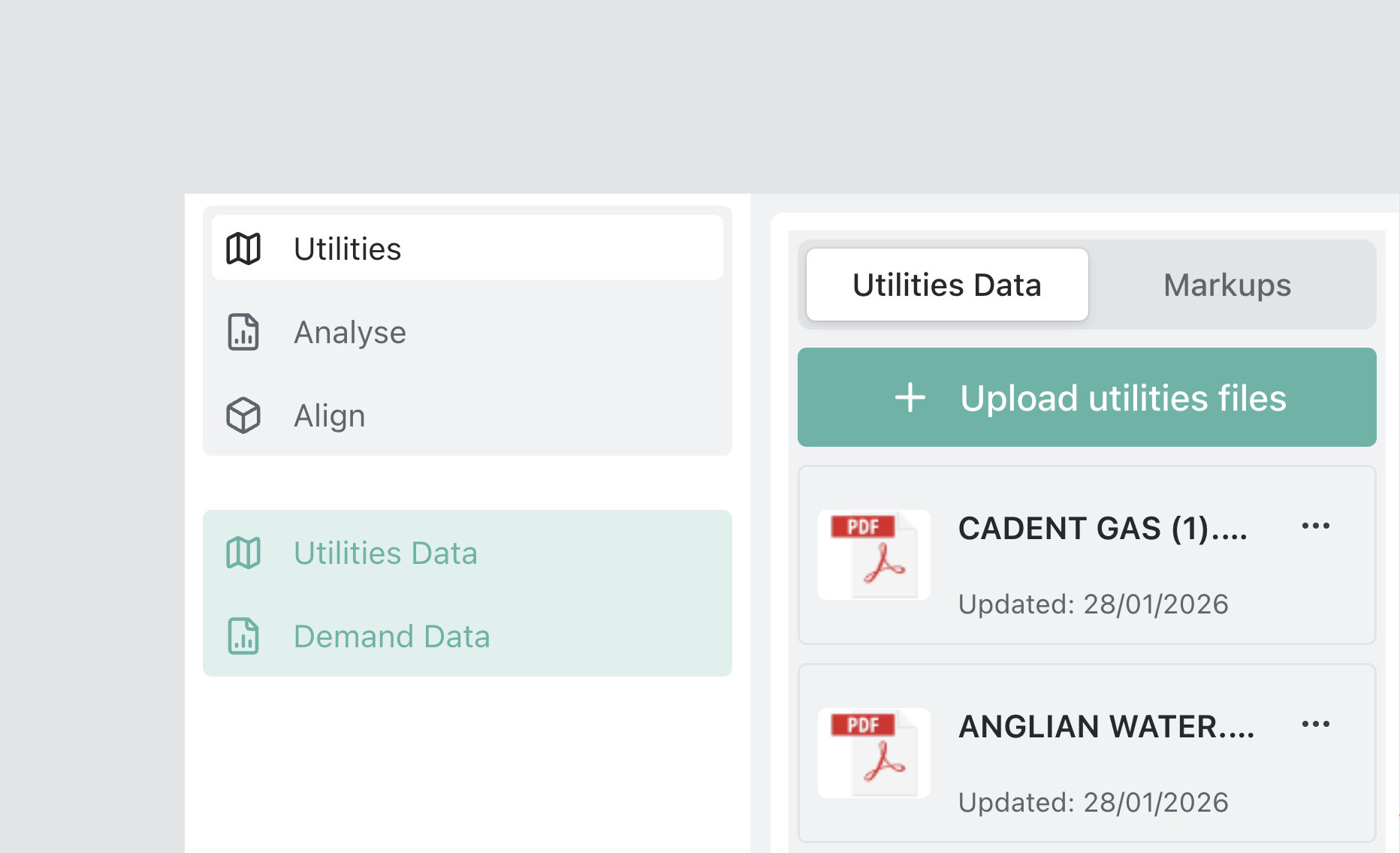
Upload Files
The Upload Utilities Data modal will open.
Files can be uploaded by:
- Dragging and dropping files into the upload area
- Selecting files manually from your device
Supported file types:
.png.jpg.pdf
Maximum file size: 50 MB
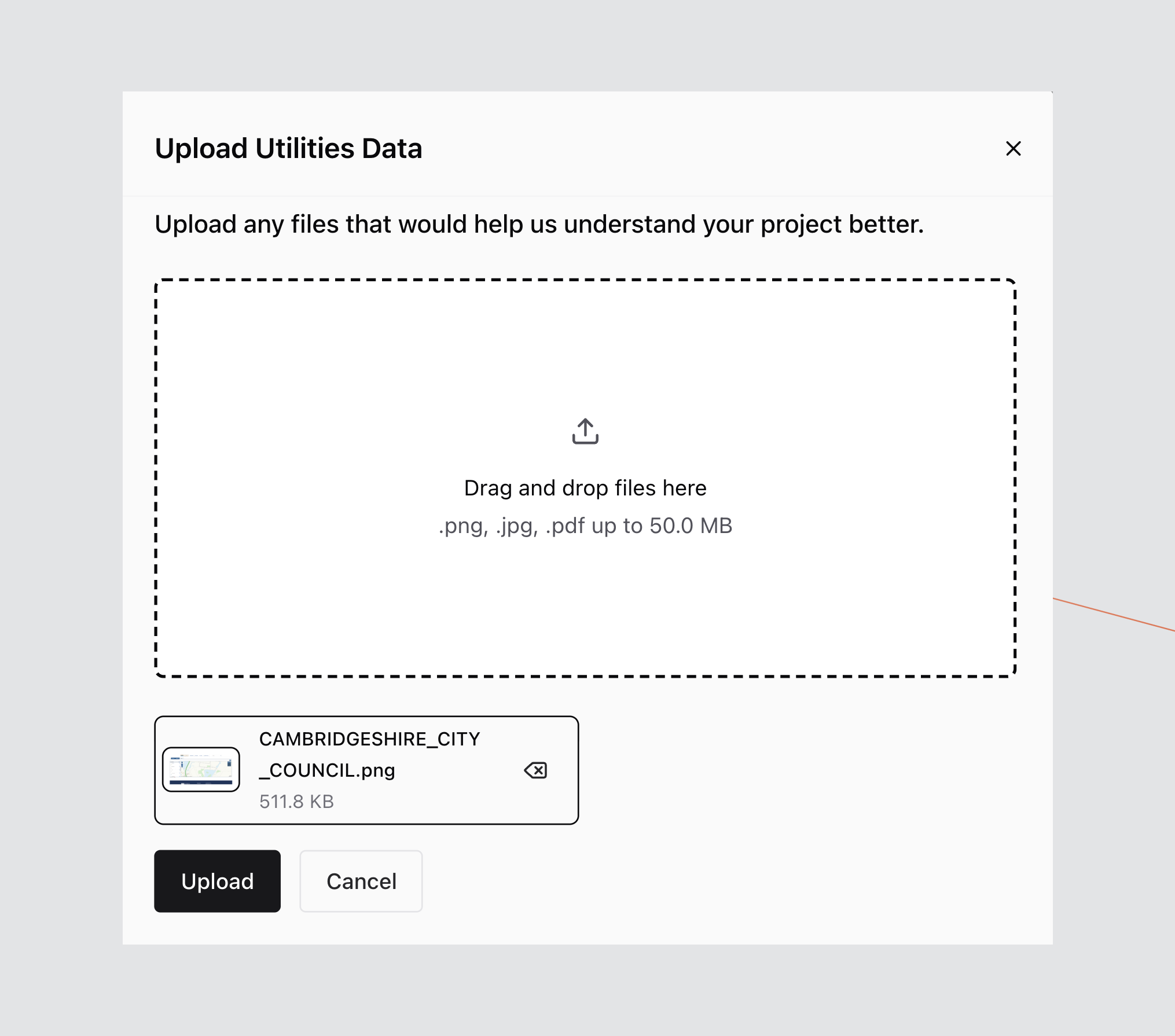
Confirm Upload
After selecting a file, it will appear in the upload list.
Review the filename and file size.
Select Upload to confirm.
View Uploaded Files
Once uploaded, the file will appear in the Utilities Data list.
Each file displays:
- File type
- File name
- Last updated date
- Options menu (•••)
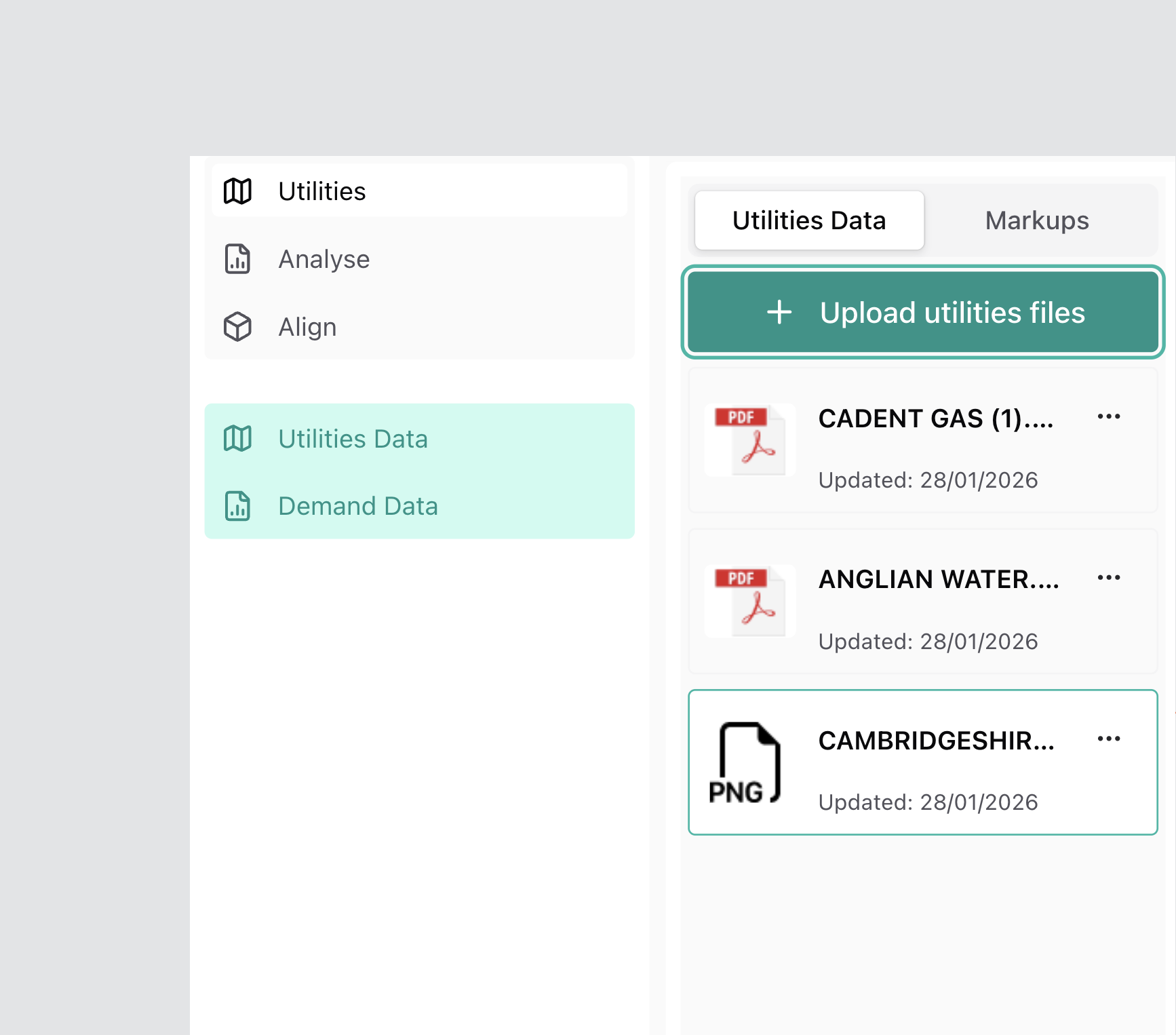
Preview on Canvas
Select a file from the list to open it in the canvas preview area.
This allows you to:
- Inspect drawings or maps
- Prepare for markup creation
- Capture required imagery
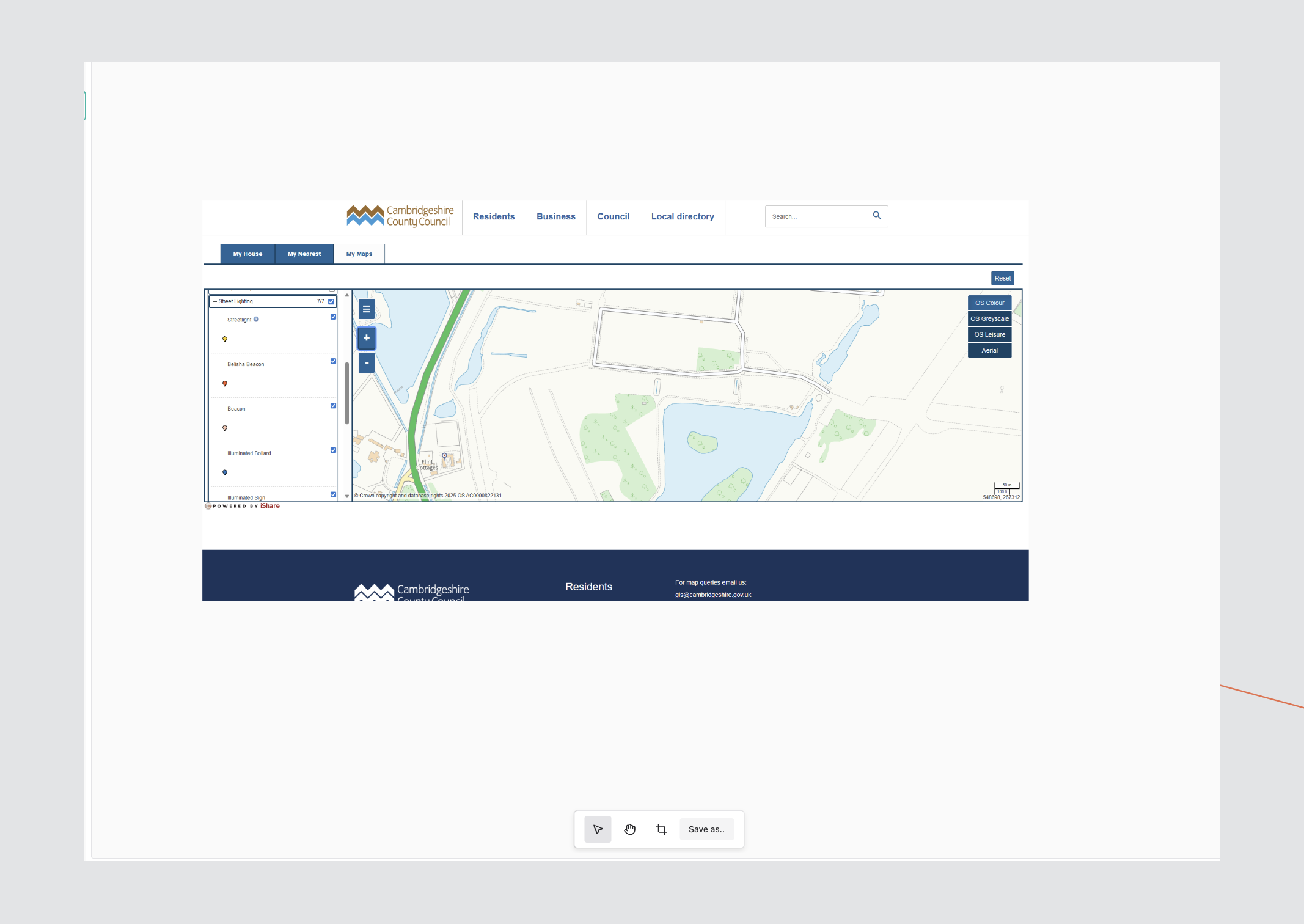
Canvas Tools
When previewing an uploaded file, a toolbar will appear at the bottom of the canvas.
From left to right:
- Select Tool – Select or interact with the displayed file
- Pan Tool – Move the image within the canvas
- Crop Tool – Crop the visible area for export or reuse
- Save as – Save a new version of the image after adjustments

Naming Guidance
To maintain consistency across projects:
- Use clear, descriptive file names (e.g.
Cambridgeshire_City_Council_Map.png) - Avoid generic names such as
image1.png - Ensure filenames reflect the infrastructure type or authority
Best Practices
- Upload original high-resolution files where possible
- Verify the correct Design Option before uploading
- Remove outdated or duplicate files
- Use consistent naming conventions across all Design Options
Uploaded Utilities Data is now available for reference during markup creation and report generation.