Using Markup Tools
Markup Tools enable users to annotate, classify, and visually communicate infrastructure information directly within the Utilities canvas.
Markups support:
- Identification of infrastructure locations
- Definition of alignments and boundaries
- Representation of service routes
- Highlighting of constraints or risks
- Inclusion of contextual notes for reporting
All markups are linked to the selected Discipline and are incorporated into generated Reports.
Toolbar Overview
The Markup toolbar is located at the bottom of the Utilities canvas.

From left to right:
- Select Tool – Select and modify existing elements
- Pan Tool – Move around the canvas
- Discipline Tool – Choose a discipline overlay and available infrastructure categories
- Text Tool – Add text annotations
- Draw Tool – Draw line-based markups
- Download – Save annotations
Select Tool
The Select Tool is used to interact with existing markups on the canvas.
Common actions include:
- Selecting individual elements
- Repositioning objects
- Resizing using selection handles
- Selecting text for editing
Pan Tool
The Pan Tool allows you to move around the canvas without selecting or modifying objects.
Use this when reviewing large site areas or repositioning your view before placing markups.
Discipline Tool
The Discipline Tool lets you switch between disciplines (e.g. Electrical, Fibre, Gas) and apply discipline-specific infrastructure styles.
Selecting the Discipline icon opens a menu showing available discipline categories.
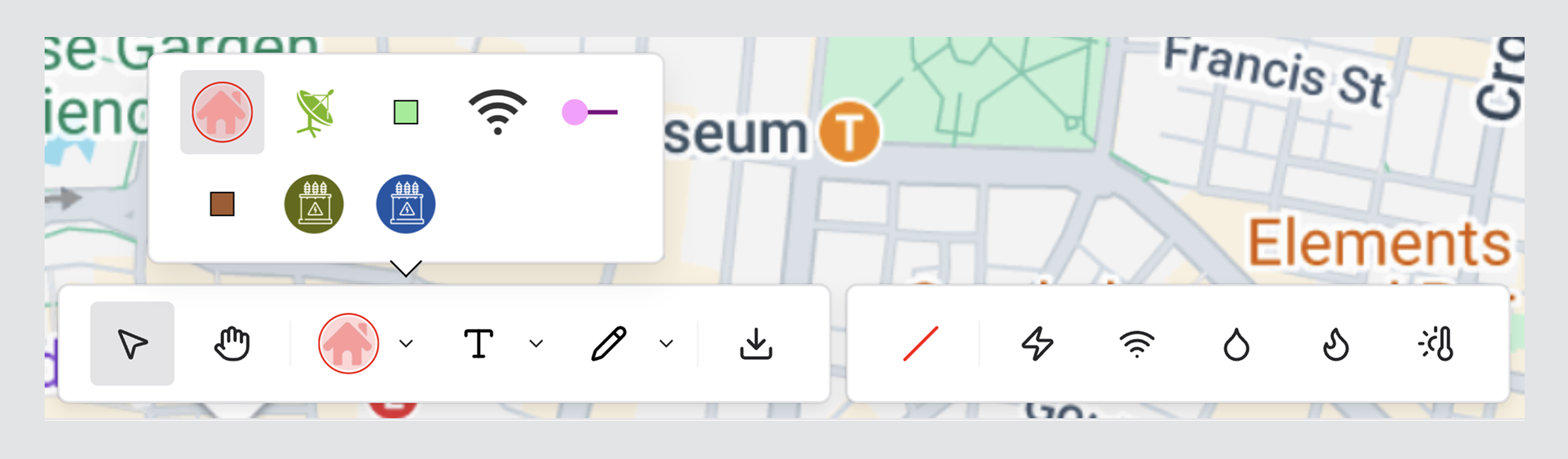
Applying Infrastructure Styles
- Select the Discipline Tool
- Choose the relevant discipline from the menu
- Select the required infrastructure style (line type)
- Apply the markup on the canvas using the Draw Tool or relevant markup action
- Position and align as required
Correct Discipline selection ensures infrastructure is accurately categorised within the Design Option and reflected in Reports.
Infrastructure Categories & Service Types
Each Discipline includes predefined line styles aligned with common infrastructure conventions.
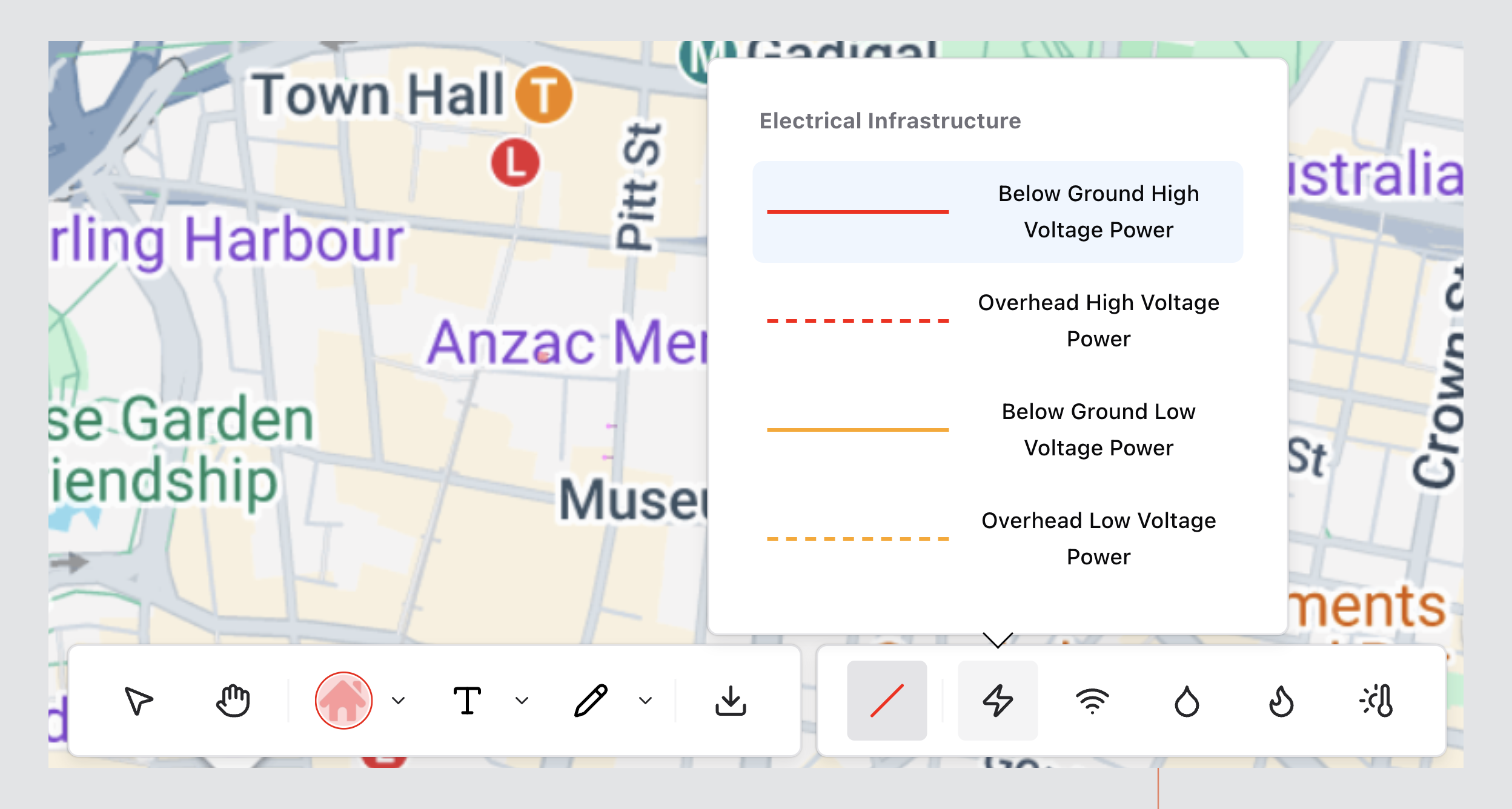
Electrical Infrastructure
Common service types include:
- Below Ground High Voltage Power
- Overhead High Voltage Power
- Below Ground Low Voltage Power
- Overhead Low Voltage Power
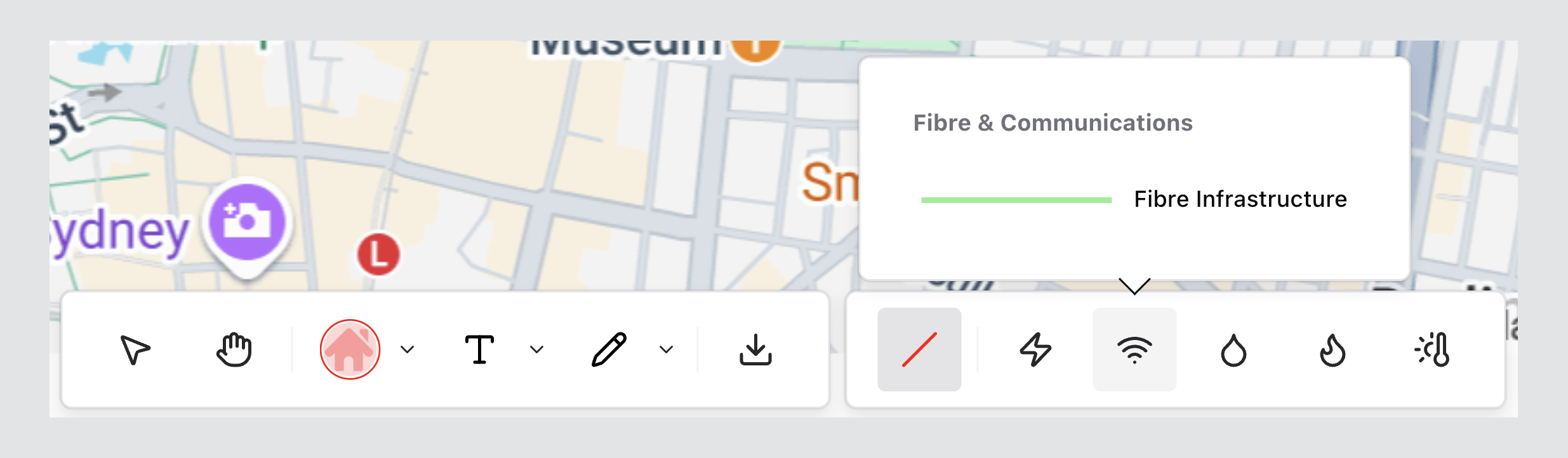
Fibre & Communications
Includes:
- Fibre Infrastructure
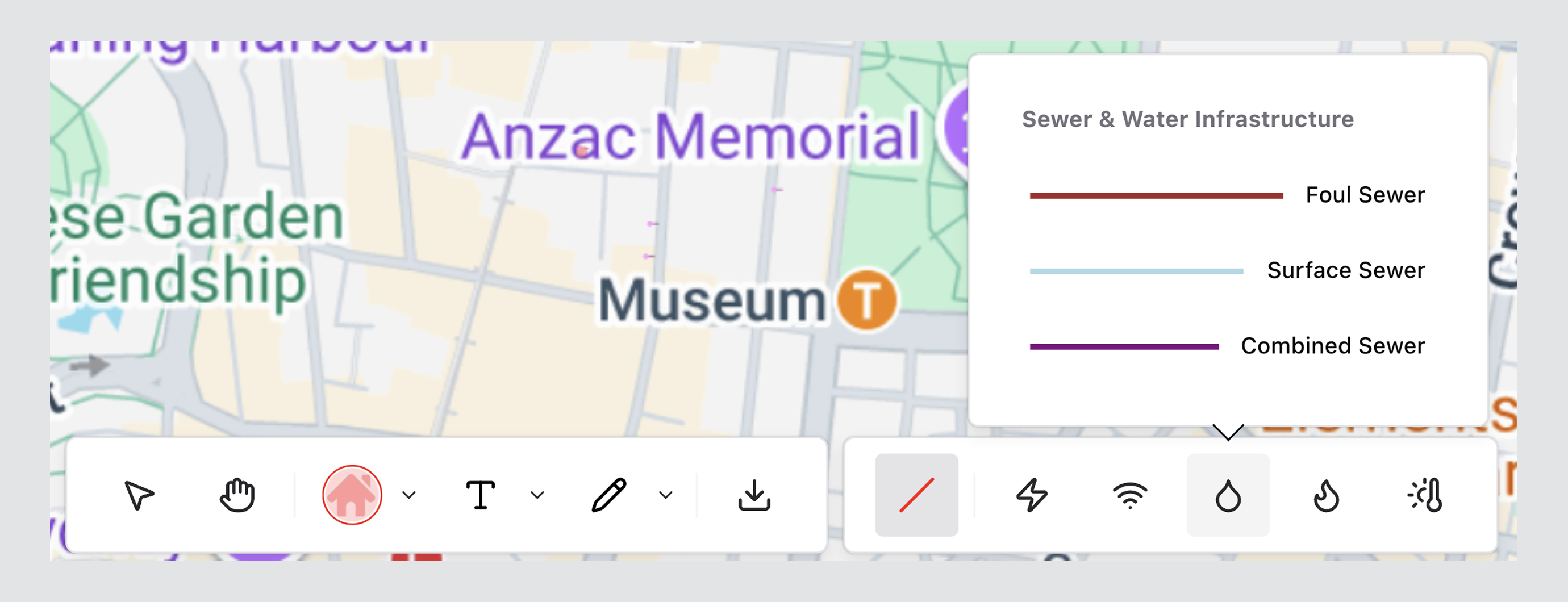
Sewer & Water Infrastructure
Includes:
- Foul Sewer
- Surface Sewer
- Combined Sewer
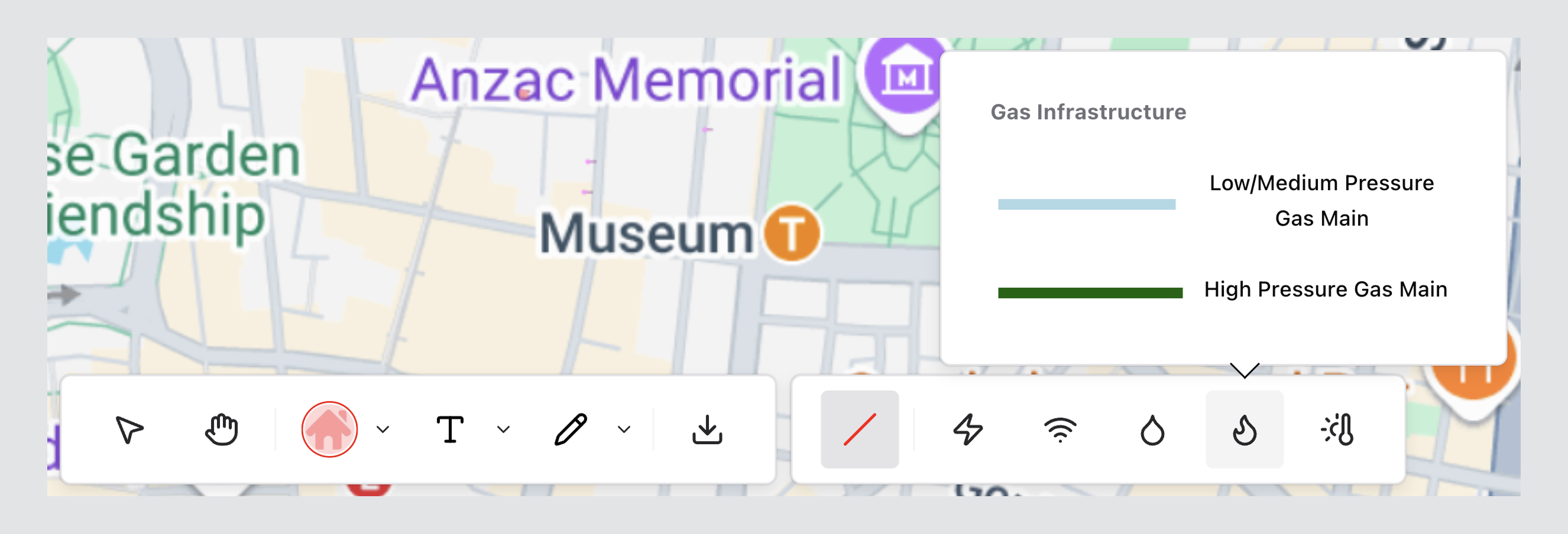
Gas Infrastructure
Includes:
- Low/Medium Pressure Gas Main
- High Pressure Gas Main
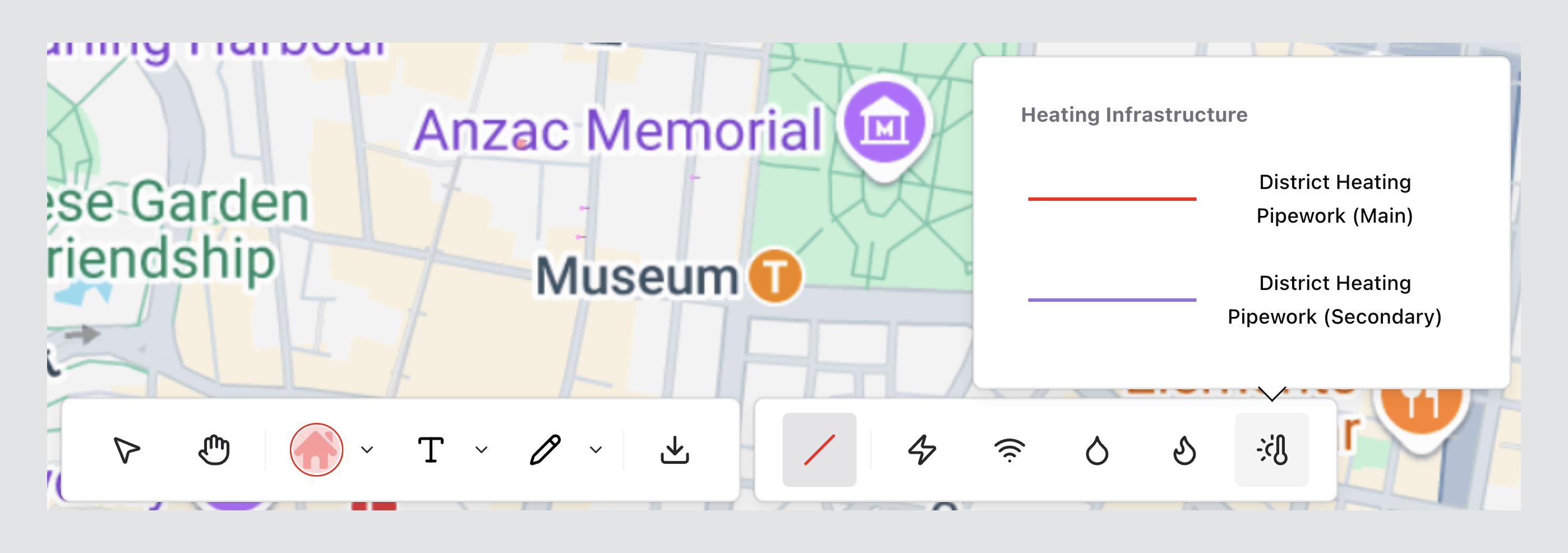
Heating Infrastructure
Includes:
- District Heating Pipework (Main)
- District Heating Pipework (Secondary)
Text Tool
The Text Tool (T icon) is used to place clear annotations on the canvas.
Adding Text
- Select the Text Tool
- Click on the canvas where the label should appear
- Type your annotation
Text Formatting Controls
When the Text Tool is selected, formatting options can be adjusted (such as size, font, and colour).
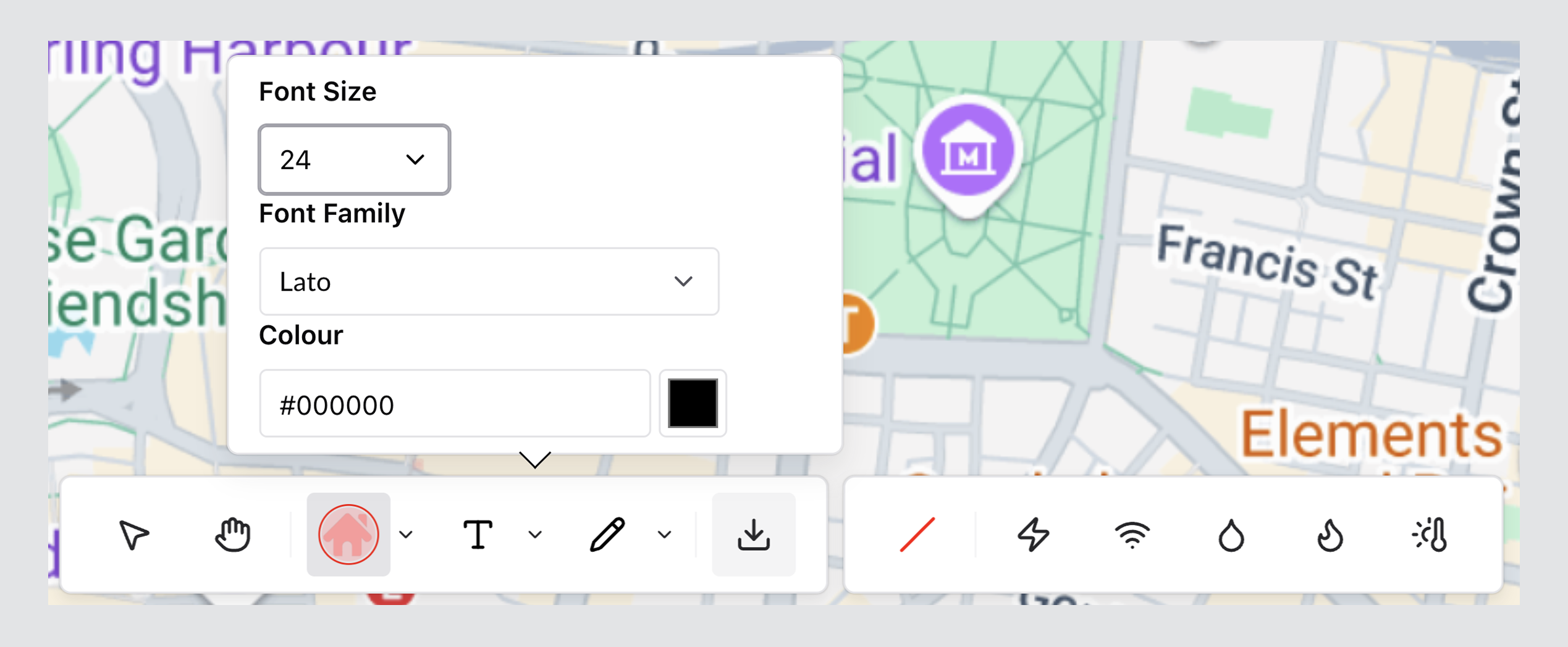
For best results, keep text styling consistent across the project to maintain readability in exports.
Draw Tool
The Draw Tool (Pencil icon) is used to create line-based markups.
Creating Line Markups
- Select the Draw Tool
- Click and drag to draw a line
- Continue drawing as needed
- Double-click to finish
Line Styling Controls
When the Draw Tool is selected, you can configure:
- Line Thickness
- Line Colour
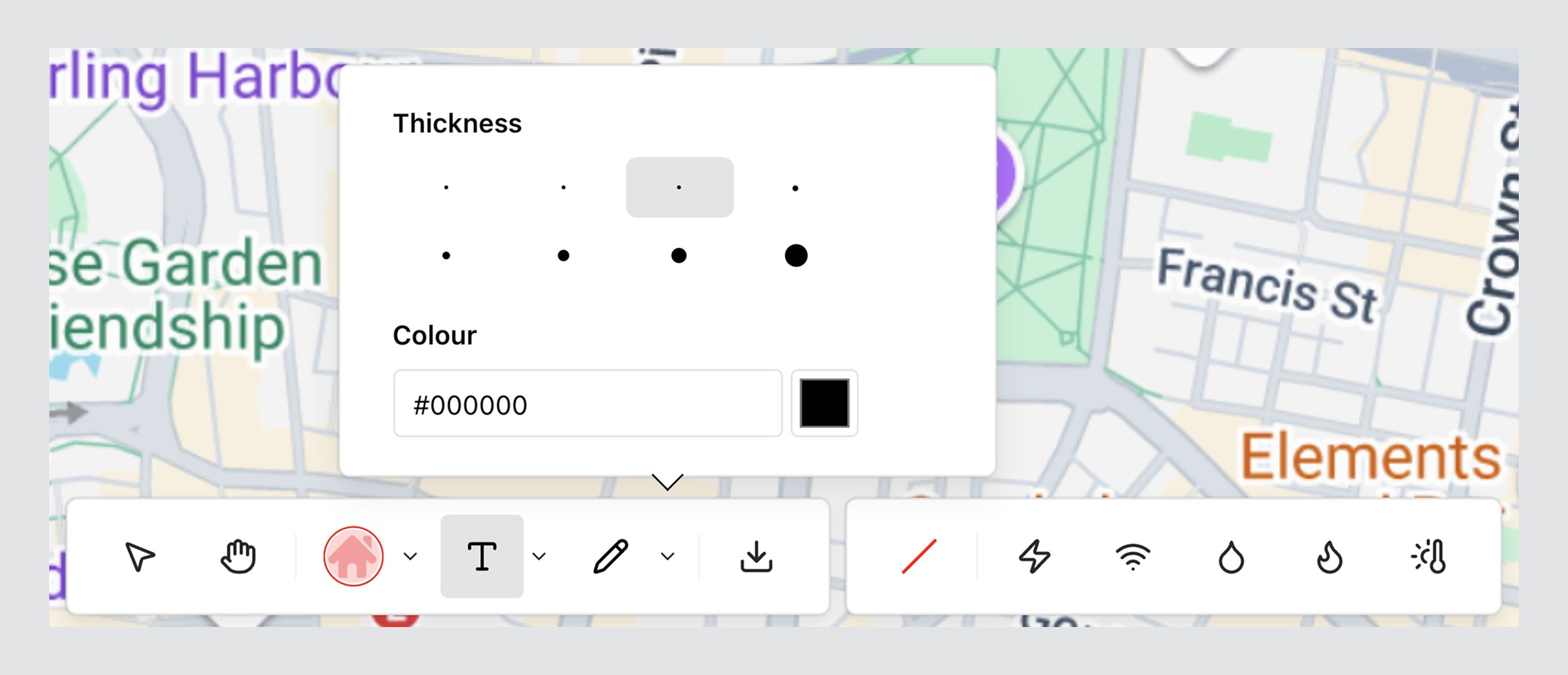
Use consistent line thicknesses and colours so markups remain clear at typical zoom levels and in exported outputs.
Save Annotations
Select the Download icon to save the annotated canvas.
Annotations can be used in Utility Reports.
Recommended Workflow
- Select the appropriate Discipline
- Choose the required infrastructure style
- Add markups using the Draw Tool
- Add supporting notes using the Text Tool
- Adjust styling (thickness, colour, font) where required
- Review for clarity and consistency
- Export the annotated output
Professional Markup Standards
- Avoid excessive visual clutter
- Maintain consistent line thickness
- Use discipline-appropriate colour standards
- Ensure labels remain readable at standard zoom levels
- Validate annotations before exporting